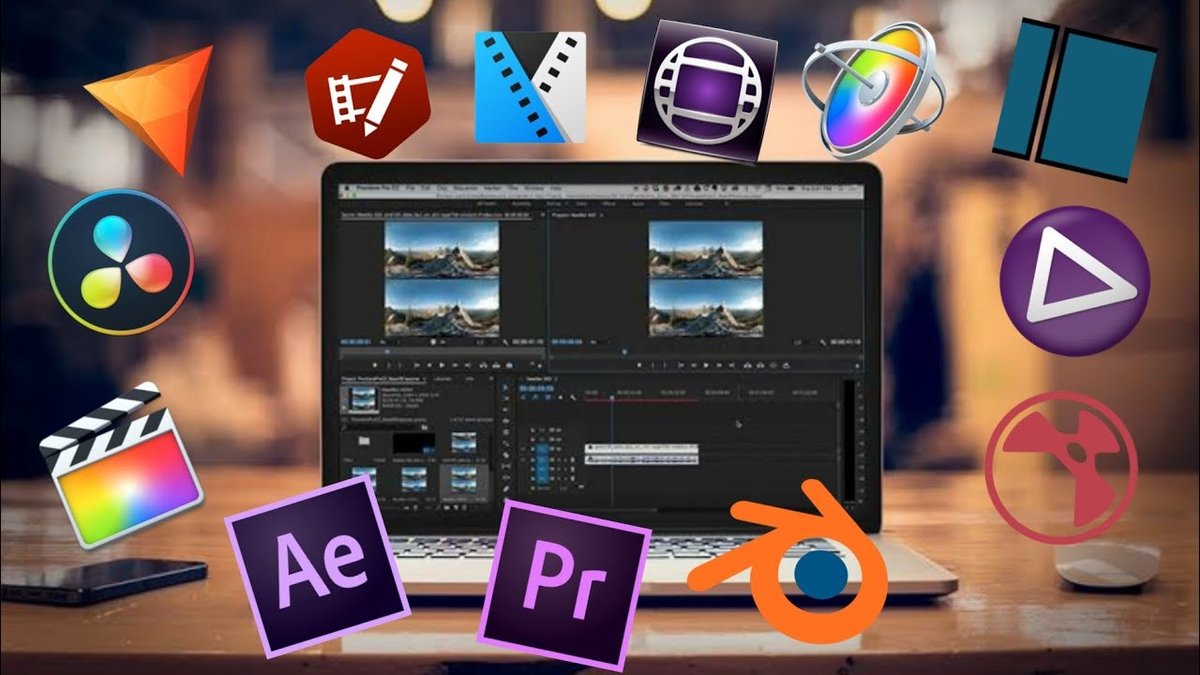
So, you've got a story to tell, a skill to share, or just some epic moments to immortalize, and you're ready to dive into video editing. But then the overwhelm hits: A sea of software, complex jargon, and often, intimidating price tags. Relax. You don't need a Hollywood budget or a film degree to start making polished, engaging videos. This guide cuts through the noise to bring you the Top Free & Affordable Video Editors for Beginner Creators in 2025 – tools that are powerful enough to make a real impact, yet friendly enough to not frustrate you from the get-go.
Whether you're dreaming of TikTok stardom, a thriving YouTube channel, or just want to make your family vacation videos shine, the right free or affordable editor can be your secret weapon. We're here to help you navigate the options, focusing on what really matters for new creators: ease of use, essential features, and your wallet.
At a Glance: Your Quick Start Checklist
- Free is Powerful: You can create professional-looking videos without spending a dime.
- Match Tool to Goal: Your best editor depends on what you want to create (social clips, cinematic films, tutorials, etc.).
- Operating System Matters: Apple users have specific advantages, but cross-platform options abound.
- Hardware Check: Even free software needs decent computer specs, especially for advanced editing.
- Test Drive: Don't commit to one tool; try a few with a small project to find your fit.
- No Watermarks: Many excellent free tools offer watermark-free exports.
Why Your First Video Editor Shouldn't Break the Bank
Jumping into video editing can feel like learning a new language. You're trying to master concepts like timelines, transitions, and color correction, all while navigating a new software interface. Adding the pressure of an expensive subscription or a complex, professional-grade program is often counterproductive for a beginner.
Free and affordable tools offer a crucial low barrier to entry. They allow you to experiment, learn fundamental skills, and discover your unique editing style without financial commitment. Many of these tools are surprisingly robust, offering features that were once exclusive to professional suites. This means you can start producing high-quality content immediately, building your skills and audience, before you ever consider investing in more advanced (and costly) software.
Choosing Your Creative Companion: Core Principles for Beginners
Finding the "best" video editor isn't about picking the most powerful one; it's about finding the right one for you right now. Here’s what to consider as you embark on your video creation journey:
- What Are Your Video Goals?
- Quick Social Media Clips (TikTok, Reels, Shorts): Look for template-driven workflows, AI features like auto-captions, and mobile-first design. Speed and trendiness are key.
- Educational Tutorials/Vlogs: A reliable screen recorder, clear audio editing, and easy title creation will be important.
- Cinematic Short Films/Narrative Content: You'll want more control over color grading, visual effects, and sound design.
- Family Videos/Personal Projects: Prioritize ease of use, intuitive interfaces, and basic effects to preserve memories beautifully.
- What's Your Operating System (OS) & Hardware Like?
- Apple Users (Mac, iPhone, iPad): You have access to deeply integrated and user-friendly options like iMovie.
- Windows Users: Microsoft Clipchamp is a native option, and many powerful cross-platform tools run well on Windows.
- Linux Users/Cross-Platform Enthusiasts: Open-source editors often shine here.
- Low-Spec Computers: Some editors are remarkably efficient, designed to run smoothly even without a dedicated graphics card.
- Web-Based Editing: If you prefer not to install software, browser-based options are a game-changer.
- Mobile-First Creators: Apps designed for smartphones offer incredible power on the go.
- How Much Are You Willing to Learn (and How Quickly)?
- Some editors are "pick up and play," allowing you to create something decent in minutes.
- Others offer immense power but require a steeper learning curve, asking you to invest time in tutorials. Think about your patience level and long-term aspirations.
The best approach is often to select two or three promising contenders based on your initial assessment. Then, dedicate a short amount of time to each, completing a small test project. This hands-on experience will quickly reveal which interface clicks with you and your workflow. If you want to dive deeper into specific tools, you might want to explore beginner video editor reviews for more detailed comparisons.
Your Toolkit for 2025: Top Free & Affordable Video Editors
Let's dive into the specifics of the top free and truly affordable options that can help beginner creators make a splash.
1. Blackmagic Design – DaVinci Resolve (The Professional-Grade Freebie)
Imagine getting access to Hollywood-level tools without spending a cent. That's DaVinci Resolve. While its full potential requires dedication, its free version is an absolute powerhouse for anyone serious about growing their editing skills.
- Core Facts: This is a comprehensive production suite integrating traditional editing, industry-standard color grading, visual effects (Fusion), and professional audio post-production (Fairlight). The free version supports up to 4K UHD at 60fps, completely watermark-free.
- Features:
- "Cut" Page: Designed for high beginner friendliness, offering quick, intuitive editing for fast turnarounds.
- Advanced Color Grading: Medium learning curve, but unparalleled free color correction capabilities.
- Fusion VFX & Fairlight Audio: Low-Medium beginner friendliness, for those ready to delve into professional visual effects and audio mixing.
- Pros: Access to a professional-level toolset for free, no watermarks, scales perfectly with your increasing skill level.
- Cons: Steep learning curve for its advanced features, requires a powerful computer (especially a good GPU) to run smoothly.
- Ideal for: Creators aiming for cinematic looks, custom graphics, professional audio, or anyone committed to serious growth in their editing journey.
2. Apple – iMovie (Effortless Apple Ecosystem Editing)
If you're an Apple user, iMovie is your default starting point, and for good reason. It's incredibly intuitive, designed to get you from raw footage to polished video with minimal fuss.
- Core Facts: Pre-installed and completely free on most Apple devices (Mac, iPhone, iPad), iMovie excels at ease of use and quick results. It seamlessly integrates across your Apple devices and supports 4K video, titles, filters, and basic green-screen effects without watermarks.
- Features:
- Magic Movie & Storyboards: High beginner friendliness, helping you quickly assemble clips into coherent narratives.
- Cross-Device Syncing: High, allowing you to start editing on your iPhone and finish on your Mac.
- Titles, Filters & Effects: High, providing a good selection of aesthetically pleasing presets.
- Pros: Extremely gentle learning curve, deep integration with Apple hardware, completely free with no watermarks.
- Cons: Only available on Apple platforms, lacks the advanced tools found in professional NLEs.
- Ideal for: Absolute beginners and casual Apple users who prioritize ease of use for social media content, family videos, or school projects.
3. Microsoft Clipchamp (Browser-Based Simplicity for Windows)
Microsoft Clipchamp makes video editing accessible directly from your browser or as a Windows app. It’s perfect for creators who want to quickly produce content without needing powerful hardware.
- Core Facts: This uncomplicated, template-driven editor is suitable for average computers. It boasts AI tools like auto-captions and text-to-speech, plus OneDrive integration. The free plan offers core editing tools and watermark-free exports up to 1080p.
- Features:
- Templates & Stock Media: High beginner friendliness, offering a jumpstart with pre-designed layouts and free stock assets.
- AI Tools (Captions, Voiceover): High, automating common tasks to save you time.
- Web-Based & Windows App: High accessibility, allowing you to edit from virtually any device with an internet connection.
- Pros: Very easy to learn, works on modest hardware, tight integration with Microsoft accounts, good free tier for basic 1080p editing.
- Cons: 4K exports and premium stock assets are behind a paywall, less powerful for complex projects requiring intricate timeline control.
- Ideal for: Casual creators and Microsoft users for quick social media content, simple tutorials, or family videos.
4. CapCut (The Social Media Sensation)
If your primary goal is to create trending short-form content for platforms like TikTok, Reels, or YouTube Shorts, CapCut is your go-to. It's a mobile-first app that has rapidly expanded to powerful desktop and web versions.
- Core Facts: Popular for its vast library of templates, trending audio, and AI features like one-click background removal, auto-captions, and text-to-speech. The free version provides watermark-free exports up to 4K, making it incredibly generous for social creators.
- Features:
- Auto-Captions & TTS: High beginner friendliness, essential for engaging social media content.
- Templates & Effects: High, offering a wealth of pre-made assets to quickly add flair.
- AI Editing Tools: High, streamlining complex tasks like background removal with a single click.
- Pros: Fast to learn with rich presets tailored for social content, a generous free tier, and specifically designed for quick, social-first workflows.
- Cons: US app store availability has fluctuated, which can be a concern for some users.
- Ideal for: Short-form and social media creators looking to produce trendy, engaging videos quickly.
5. VSDC Free Video Editor (Windows Workhorse for Low-Spec PCs)
Don't have a high-end computer but still want powerful editing capabilities? VSDC is a robust non-linear editor specifically designed to run smoothly on older or less powerful Windows machines.
- Core Facts: This editor includes multitrack editing, chroma key (green screen), a built-in screen recorder, and extensive color correction. It exports watermark-free in various formats, proving that powerful tools don't always demand premium hardware.
- Features:
- Low System Requirements: High beginner friendliness for those with modest computers.
- Chroma Key & Color Tools: Medium, offering advanced features like green screen removal and detailed color adjustments.
- Screen Capture & Voice-over: High, making it ideal for tutorial creators.
- Pros: Runs smoothly on modest hardware, completely free with no watermarks, includes surprisingly advanced features like chroma key.
- Cons: Windows-only, and its user interface can feel less intuitive or a bit dated compared to more modern competitors.
- Ideal for: Windows users on low-spec PCs looking to create YouTube tutorials, family videos, or school projects.
6. Shotcut (Open-Source, Cross-Platform, and Feature-Rich)
Shotcut is a fantastic example of what open-source software can achieve. It's completely free, cross-platform, and offers a balance between advanced features and user accessibility.
- Core Facts: An open-source, cross-platform (Windows, Mac, Linux) video editor that provides excellent format support through FFmpeg. It's completely free, with no ads or watermarks, and features a modular, customizable interface.
- Features:
- Wide Format Support: High beginner friendliness, meaning you won't struggle with obscure video or audio files.
- Filter-Based Effects: Medium, offering a good range of filters and effects that can be applied and customized.
- Customizable UI: Medium, allowing you to arrange panels to suit your workflow.
- Pros: Completely free and open-source, excellent format support, truly cross-platform.
- Cons: The user interface can feel less modern than commercial competitors and it lacks abundant built-in templates.
- Ideal for: Budget-conscious creators and learners who want a traditional, timeline-based editor that provides flexibility and advanced control without cost.
7. OpenShot (The First-Timer's Dream)
For those who have never touched a video editor before, OpenShot is arguably the most straightforward entry point. Its design philosophy is pure simplicity.
- Core Facts: This celebrated open-source editor focuses on accessibility, making it ideal for first-time editors. It offers a classic drag-and-drop timeline interface and is cross-platform (Windows, macOS, Linux, ChromeOS). Completely free forever (GPLv3), with no watermarks or hidden costs, it handles fundamental editing tasks with grace.
- Features:
- Simple Drag-and-Drop Timeline: High beginner friendliness, making basic editing feel intuitive.
- Basic Titles & Effects: High, providing enough options to get your videos looking good.
- Cross-Platform Support: High, especially useful for Chromebook users or those who switch between operating systems.
- Pros: Extremely easy for first-time editors, truly free and open-source, runs on older computers and ChromeOS.
- Cons: Users have reported occasional stability issues, so ensure you download from the official site.
- Ideal for: First-time editors and Chromebook users creating straightforward vlogs, school projects, or family videos.
8. Kdenlive (Growing with Your Open-Source Skills)
Kdenlive is another open-source gem that provides a surprising amount of power. It's for the beginner who knows they'll quickly want to expand their skills beyond the absolute basics.
- Core Facts: A powerful, feature-rich open-source, cross-platform (Windows, macOS, Linux) video editor with community-driven development and frequent updates. It offers multitrack editing, extensive effects/transitions, customizable layouts, and proxy editing for smoother performance on less powerful computers. Completely free with no watermarks or feature limitations.
- Features:
- Multitrack Timeline: High beginner friendliness, offering plenty of space for layers of video and audio.
- Proxy Editing: Medium, a crucial feature for editing 4K footage on less powerful machines.
- Keyframeable Effects: Low-Medium, allowing for precise animation of effects over time.
- Pros: Robust feature set for a free tool, no watermarks, strong community support, runs on Windows, macOS, and Linux.
- Cons: The interface can feel slightly less polished than commercial alternatives, and there's a learning curve for some advanced features.
- Ideal for: Growing hobbyists to semi-pros seeking a powerful free editor that can grow with their skills without demanding an immediate financial investment.
9. Blender – Video Sequence Editor (VSE) (For the 3D Enthusiast)
You might know Blender as a powerful 3D animation suite, but it also houses a capable non-linear video editor (VSE). If you envision combining video with custom 3D models or motion graphics, this is a unique, free offering.
- Core Facts: The Video Sequence Editor is a capable non-linear editor hidden within the open-source 3D animation software Blender. It uniquely combines traditional video cuts with advanced 3D modeling and motion graphics within a single application. It includes a multitrack timeline, transitions, and basic effects, and is completely free with no watermarks.
- Features:
- Integrated 3D/VFX Workflow: Low-Medium beginner friendliness, as you're learning a 3D program alongside video editing.
- Multitrack Video Editing: Medium, offering standard timeline controls.
- Extensive Add-on Library: Medium, allowing you to expand its capabilities.
- Pros: Completely free and open-source, powerful 3D integration, no watermarks.
- Cons: The interface can be overwhelming if you're only looking for a simple video editor; the VSE is less intuitive than dedicated video editing software.
- Ideal for: Creators interested in expanding into visual effects and 3D modeling alongside traditional video editing.
10. Adobe Express – Free Online Video Editor (Quick & Polished Social Content)
From the makers of industry-standard tools like Premiere Pro, Adobe Express offers a streamlined, browser-based experience specifically for quick, polished social media content.
- Core Facts: A top-tier browser-based solution focusing on speed and templates for social media. It requires no installation, integrates with Adobe's stock assets, and allows quick trimming, animated text, captions, and one-click resizing for various social media dimensions.
- Features:
- Template Library: High beginner friendliness, providing professional designs at your fingertips.
- One-Click Resizing: High, essential for adapting content across different social platforms.
- Web-Based Interface: High, meaning you can work from anywhere with internet access.
- Pros: Extremely beginner-friendly and quick to produce polished social videos, no installation required, the template library significantly speeds up workflows.
- Cons: Limited for heavier or more advanced desktop NLE workflows, and paid plans are required for more stock assets and storage.
- Ideal for: Marketing professionals and fast social creators (e.g., Instagram Reels or TikTok) who prioritize efficiency and a clean aesthetic.
11. Canva – Video Editor (All-in-One Design & Video)
Canva has evolved from a graphic design powerhouse to a surprisingly capable video editor. It's perfect if you also need to create complementary graphics, social media posts, or presentations.
- Core Facts: Evolved from a graphic design tool, it offers a template-first, drag-and-drop interface within a browser. It's ideal for speed and branding in social media content, marketing promos, or presentations. It integrates a vast library of graphics, fonts, and stock assets. The free version provides generous templates and basic tools without watermarks, and includes AI-powered features.
- Features:
- Large Template Library: High beginner friendliness, allowing you to start with professional layouts.
- Integrated Design Tools: High, making it an all-in-one solution for visual content creation.
- Web & Mobile Sync: High, ensuring your projects are accessible across devices.
- Pros: Extremely easy to learn, offers an all-in-one design and video workflow, vast library of free assets.
- Cons: Limited timeline control compared to dedicated video editors, and advanced features require a Pro subscription.
- Ideal for: Brands, marketers, and social teams needing an integrated design and video workflow for consistent branding and quick content creation.
12. VN Video Editor (VlogNow) (Mobile Powerhouse on Your Desktop)
VN Video Editor (VlogNow) started as a mobile-first app but has grown into a powerful desktop editor too, bringing sophisticated mobile editing capabilities to a wider audience.
- Core Facts: A powerful mobile-first editor (also available on desktop) bringing desktop-style features like multi-track timeline, keyframe animations, and speed ramping to phones. It allows seamless project transfer between mobile and desktop. The free mobile version offers 4K exports without watermarks, auto-captions, and LUT support.
- Features:
- Multi-Track Timeline: High beginner friendliness, offering detailed control even on mobile.
- Speed Ramping & Curves: Medium, allowing for dynamic slow-motion and fast-motion effects.
- Auto-Captions & LUTs: High, streamlining common tasks and offering quick color grading options.
- Pros: Generous free mobile version with no watermarks, fast learning curve, powerful features for on-the-go editing.
- Cons: The desktop version is less powerful than professional NLEs, and some users report occasional stability issues on mobile.
- Ideal for: Mobile vloggers and quick editors creating high-quality social media content directly from their phone, with the option to transition to desktop.
Beyond Free: Other Highly Recommended (and Affordable) Options
While this guide focuses on free tools, it's worth knowing about a few affordable editors that often offer enhanced features, dedicated support, or unique workflows for a small investment. Many come with free trials, so you can test them out before buying.
- CyberLink PowerDirector: Often hailed as the best overall for beginners, it balances professional-style tools with AI assistance across both desktop and mobile, and scales well as your skills grow.
- ACDSee Luxea: A solid choice for low-spec computers, offering a free version to learn the basics and including a built-in screen recorder.
- Adobe Premiere Elements (2025): If you envision eventually transitioning to professional Adobe tools like Premiere Pro, this is a great stepping stone with its redesigned, beginner-friendly interface. It's a one-time purchase.
- Wondershare Filmora: Specifically designed for novice editors, Filmora provides extensive guidance and is packed with post-production features, effects, and templates.
- Movavi Video Suite 2025: A feature-rich, fun, and affordable option that often includes a screen recorder, video converter, and other multimedia tools.
- Corel VideoStudio Ultimate: Notable for features like a built-in GIF Editor, creative effects, and intuitive interface.
- Magix Movie Studio: Offers templates optimized for popular social media exports, making it quick to get your content online.
- Nero Video: Features an optional simplified Express view, providing extreme ease of use for quick edits.
These options typically offer more integrated features, effect libraries, and polished interfaces than their free counterparts, often at a reasonable one-time purchase or low subscription cost.
Making Your Choice and Taking the Leap: Actionable Steps
Now that you're armed with options, here’s how to translate this knowledge into your first fantastic video.
- Re-Assess Your Needs with Specificity:
- For Cinematic Short Films/Detailed Color Grading: Seriously consider DaVinci Resolve or give Shotcut a spin. Their power for nuanced visuals is hard to beat.
- For Branded Marketing Videos/Social Media Content (templates/stock assets): Web-based tools like Adobe Express and Canva are your ideal companions for speed and consistency.
- For Mobile-First Creators (TikToks/Reels): CapCut and VN Editor excel here, giving you powerful tools right in your pocket.
- Consider Your Operating System (OS): Apple users have a fantastic, easy option in iMovie. Windows users can benefit from Microsoft Clipchamp for simplicity or explore VSDC for more power on modest hardware. For open-source and cross-platform flexibility, Kdenlive and OpenShot are strong choices.
- For Those with Older or Less Powerful Computers: VSDC, OpenShot, and Kdenlive (with proxy editing) are designed to be efficient.
- Select Two or Three Contenders for a "Trial Run": Don't get stuck in analysis paralysis. Pick the couple of tools that most align with your immediate goals and OS.
- Complete a Small Project: This is the most crucial step. Grab a 30-second video clip from your phone, import it into each of your chosen editors, and perform these basic tasks:
- Trim the beginning and end.
- Add a simple title card.
- Overlay some background music.
- Export the final video.
This hands-on test will quickly reveal which interface feels most intuitive and enjoyable for you.
- Expand Your Post-Production Skills Gradually: Once you're comfortable with the basics (cutting, adding music, titles), start exploring more advanced techniques. Learn about color correction, adding transitions, basic effects, and most importantly, how to improve your audio. Details like clear audio and accessible captions can significantly enhance your content's quality and reach.
- Always Consider Your Hardware: Remember, video editing is resource-intensive. While free tools are often optimized, exporting high-resolution video will always demand a decent processor, sufficient RAM (8GB minimum, 16GB+ recommended), and sometimes a dedicated graphics card. Don't let your software be the bottleneck if your hardware can't keep up.
Ultimately, your journey into video creation should be exciting, not daunting. The tools listed here are more than capable of helping you tell your stories, share your passions, and connect with your audience. The "best" editor is the one that empowers your creativity and helps you bring your vision to life, effectively and joyfully. Happy editing!